
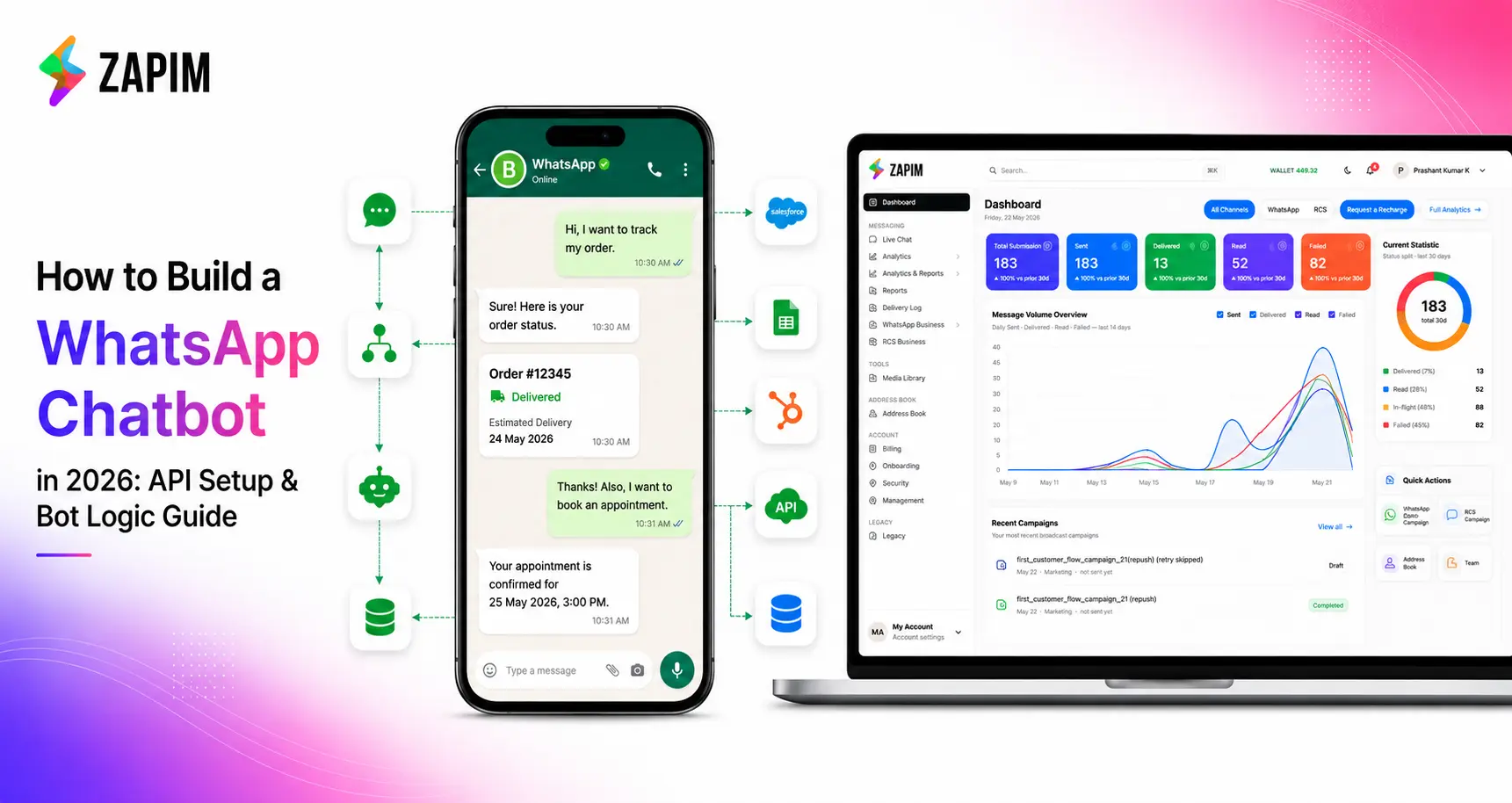
How to Build a WhatsApp Chatbot in 2026: API Setup & Bot Logic Guide
Quick Answer: To build a WhatsApp chatbot in 2026, convert your number to a WhatsApp Business Account, get WhatsApp Business API access through a Meta-verified provider such as Zapim, map out your conversation flows in a no-code builder, connect the bot to your CRM or order system, and get your message templates approved before launch.
WhatsApp has crossed 3 billion users, and for a lot of businesses it’s now the first place customers go — ahead of email, ahead of a phone call, sometimes ahead of the website itself. A chatbot on WhatsApp means someone asking “is my order out for delivery” or “what time do you open on Sunday” gets an answer in seconds, at 2 am, without anyone on your team picking up a phone.
This guide covers everything involved in building one in 2026: getting your WhatsApp account set up correctly, choosing between a rule-based and AI-powered bot, the actual build process, real costs, and the mistakes that trip up most first-time builds.
What Is a WhatsApp Chatbot and How Does It Work?
A WhatsApp chatbot is software connected to the WhatsApp Business API that automatically sends and receives messages, answering common questions, confirming orders, booking appointments, or handing a conversation to a human agent when needed.
Here’s the flow: a customer messages your business number. That message goes to your chatbot platform, not directly to a person. The platform checks it against your conversation logic, either a pre-built decision tree or, for AI-powered bots, a language model that interprets intent, and sends a reply back through the API. Often, that reply pulls in live data, like an order status from your e-commerce platform or an open slot from your booking calendar.
A regular WhatsApp account and the WhatsApp Business App don’t support this. You need the WhatsApp Business API, which is built for automation and multiple users rather than one person on one phone.
|
Feature |
Personal WhatsApp |
WhatsApp Business App |
WhatsApp Business API |
|
Built for |
Individuals |
Small businesses (one person) |
Businesses needing automation at scale |
|
Chatbot support |
No |
Limited (auto-replies only) |
Yes, full automation |
|
Multiple agents |
No |
No — one device |
Yes, shared inbox |
|
CRM / system integration |
No |
No |
Yes |
|
Cost |
Free |
Free |
Pay-per-conversation (Meta) + platform fees |
What Do You Need Before You Can Build a WhatsApp Chatbot?
Before any of the actual building starts, get these in place:
• A dedicated business phone number that isn’t currently logged into a personal WhatsApp account
• A verified Meta Business Manager account
• A WhatsApp Business Account
• Access to the WhatsApp Business API, through Meta directly or a Business Solution Provider (BSP) such as Zapim
• A short list of the actual questions and tasks the bot needs to handle
• Draft content for your message templates; anything sent outside an active customer conversation needs Meta’s approval first
The first two, the phone number and the Business Account, are where most people get stuck, so that’s where we’ll start.
How to Convert Your WhatsApp to a WhatsApp Business Account
To change WhatsApp to a Business account, download the WhatsApp Business app (a separate app from regular WhatsApp), register it with your business phone number, verify with the OTP sent via SMS or call, then complete your business profile with your company name, category, address, and hours.
1. Download the WhatsApp Business app from the Play Store or App Store. It’s a separate, free app, your regular WhatsApp app stays as is.
2. Open the app and accept the terms.
3. Enter the phone number you want to use for business. If that number already has a personal WhatsApp account, the app offers to migrate it, your chat history moves over, and the number becomes a Business account. If it’s a fresh number, you’ll simply verify it.
4. Verify with the one-time code sent by SMS or phone call.
5. Build out your business profile: business name, logo, category (e.g. “Retail,” “Healthcare”), short description, address, website, and operating hours.
6. Optional but worth doing: set up a product or service catalogue so customers can browse directly inside the chat.
Can I Convert My Existing WhatsApp Number to a Business Account?
Yes. During setup, the WhatsApp Business app detects if your number is already registered on regular WhatsApp and offers to migrate it. Your existing chats and contacts carry over, but the number can no longer run a personal WhatsApp account on a different device at the same time; it’s now a business number. If you want to keep your personal WhatsApp running, register your Business account with a different number instead.
WhatsApp Business App vs WhatsApp Business API — Which Do You Need for a Chatbot?
The Business App you just set up is a real app on a real phone, with basic automation, away messages, greeting messages, and quick replies. That’s useful for a one-person business answering messages manually, but it caps out fast. It can’t run a chatbot, can’t be used by more than one agent, and doesn’t connect to your CRM or order system.
For an actual chatbot, you need the WhatsApp Business API — sometimes called the Cloud API. It isn’t an app you install; it’s an API that your chatbot platform connects to. That’s the version that supports automated flows, AI responses, multiple agents, and integrations.
|
Criteria |
WhatsApp Business App |
WhatsApp Business API |
|
Chatbot/automation |
Basic auto-replies only |
Full automation, AI-capable |
|
Number of agents |
One |
Multiple shared inbox |
|
Setup |
Self-serve, instant |
Meta verification + BSP onboarding |
|
Best for |
Solo entrepreneurs, very small businesses |
Businesses running chatbots or sending notifications at scale |
How to Get WhatsApp Business API Access in 2026
Direct through Meta: You apply through Meta Business Manager, go through business verification (legal business documents, a live website, display name approval), and build against Meta’s Cloud API yourself. This works, but it’s a development project, you’ll need someone who can handle the integration, webhook setup, and ongoing maintenance.
Through a Business Solution Provider (BSP): BSPs like Zapim are pre-approved by Meta to provide API access, and they package it with a dashboard, a chatbot builder, template management, and support. Most businesses building a chatbot, especially without an in-house dev team — go this route, since it cuts setup time from weeks to days and you’re not maintaining the API connection yourself.
If you’re going the BSP route, Zapim’s WhatsApp Business API setup includes the official Meta-verified API plus a drag-and-drop chatbot builder, so the technical access and the bot-building tool come from the same place.
How to Build a WhatsApp Chatbot Step by Step
1. Convert to a WhatsApp Business Account. Covered above, this is non-negotiable, since everything else depends on it.
2. Get WhatsApp Business API access through a BSP. This gives you the dashboard and tools to actually build the bot.
3. Define your use cases. Pull up your last month of customer messages or support tickets and find the patterns, order status, store hours, return policy, and appointment booking. Start with the top five.
4. Map your conversation flows. For each use case, sketch out the decision tree: what the customer might type or tap, and what the bot should say or do at each branch — including what happens if the bot doesn’t understand.
5. Build the bot in a drag-and-drop builder. Most BSP platforms, including Zapim, let you build these flows visually; no code is required for standard flows.
6. Connect it to your backend. This is what makes the bot useful beyond FAQs, pulling real order statuses from your e-commerce platform, real availability from your booking system, or creating tickets in your CRM.
7. Get your message templates approved. Anything you send outside an active 24-hour conversation window reminders, promotions, notifications must go through Meta’s template approval process first. Submit these early, since approval can take a day or two.
8. Test, launch, and monitor. Run through every flow as a customer would, including the odd inputs. Once live, track where conversations stall or where the bot hands off to a human most often that’s your roadmap for what to fix next.
What Are the Best Use Cases for a WhatsApp Chatbot?
The right use cases depend on your industry, but a few patterns show up everywhere:
• E-commerce and retail: order confirmations, shipping and delivery updates, “where is my order” lookups, abandoned cart reminders, and product availability questions.
• Healthcare: appointment booking and reminders, prescription refill notifications, and pre-visit instructions — handled without tying up front-desk phone lines.
• Travel and hospitality: booking confirmations, check-in details, and answers to the same handful of questions every guest asks (Wi-Fi password, checkout time, parking).
• Logistics: delivery tracking updates and letting customers reschedule or redirect a delivery directly in the chat instead of calling.
• Automotive: service appointment reminders, recall notifications, and test-drive scheduling.
• Financial services: OTPs and two-factor codes, balance and payment alerts, and due-date reminders, sent as secure, automated notifications.
How Much Does It Cost to Build a WhatsApp Chatbot in 2026?
Three things make up the cost:
1. Meta’s conversation-based pricing. WhatsApp charges per 24-hour conversation, split into categories — marketing, utility, authentication, and service, with rates that vary by country. Service conversations, the ones a customer starts, are typically the cheapest category.
2. Platform or BSP fees. Most BSPs charge a monthly subscription or a usage-based fee for the dashboard, chatbot builder, and support, separate from Meta’s per-conversation charges.
3. Build cost. With a no-code builder, most businesses can build and maintain their flows in-house without hiring developers. Costs go up only if you’re integrating deeply with custom backend systems or building an AI layer that needs ongoing tuning.
For an exact estimate, conversation volume matters more than anything else — a business sending a handful of order updates a day has a very different bill than one running large promotional campaigns.
What Mistakes Should You Avoid When Building a WhatsApp Chatbot?
• No human fallback. If the bot can’t answer, it needs to hand off to a person — not loop the customer back to the main menu.
• Ignoring the 24-hour window. Messages sent after 24 hours of customer inactivity must use a pre-approved template, or they won’t deliver. Plan templates in advance.
• Skipping real-world testing. Customers don’t type the way you expect, test with actual phrasing, typos, and dead-end questions before launch.
• Building generic flows. A bot built around what you assume customers ask, instead of what they actually ask, ends up underused. Base flows on real chat logs or support tickets.
• Not reviewing performance. Drop-off points and frequent human handoffs are the clearest signal of what to fix next, ignoring them means the bot never improves.
How Zapim Helps You Build and Launch a WhatsApp Chatbot
Zapim provides the official WhatsApp Business API, Meta-verified, along with a drag-and-drop chatbot builder that doesn’t require development resources to get started. Beyond the chatbot itself, Zapim’s dashboard brings WhatsApp together with SMS, RCS, voice, and email — so you can see how a customer’s WhatsApp conversation fits into their full journey, with the same analytics and reporting across every channel. For businesses that need it, Zapim also supports AI-powered conversation layers and integrates with CRMs and existing business systems, with 24/7 support throughout setup and beyond.
If you’re ready to move from “we should probably have a WhatsApp chatbot” to actually having one, request a demo and Zapim’s team can walk through your specific use cases.
Where to Go From Here
A WhatsApp chatbot isn’t really a single project, it’s the Business Account, the API access, the conversation design, and the integrations all working together. Get the account setup right first, start with a handful of well-defined use cases, and expand from there based on what your real conversations show you.
Frequently Asked Questions
Q1 How do I change my WhatsApp to a Business account?
Download the WhatsApp Business app — it’s separate from the regular WhatsApp app — and register it using your business phone number. If that number already has a personal WhatsApp account, the app offers to migrate it; otherwise, verify it with an OTP and fill in your business profile (name, category, hours, address).
Q2 How do I convert a WhatsApp account to a Business account?
Conversion happens when you set up the WhatsApp Business app with a number that’s currently on regular WhatsApp. The app prompts you to migrate the account, transferring your chats and contacts to the Business app. After migration, that number runs as a Business account and can’t simultaneously run regular WhatsApp on another device.
Q3 Can I use the same phone number for personal WhatsApp and WhatsApp Business?
Not at the same time on two different apps. A single phone number can only be active on either regular WhatsApp or WhatsApp Business, not both. If you want to keep using personal WhatsApp, register your Business account with a different number.
Q4 What’s the difference between the WhatsApp Business App and the WhatsApp Business API?
The Business App is a free app for one person to manage chats manually, with basic automation like greeting and away messages. The Business API (Cloud API) is built for automation at scale, it powers chatbots, supports multiple agents, and connects to CRMs and other business systems. If you’re building a chatbot, you need the API, typically accessed through a BSP.
Q5 Do I need coding skills to build a WhatsApp chatbot?
No, not for most setups. Platforms like Zapim offer drag-and-drop builders where you create conversation flows visually. Coding becomes relevant only for deeper backend integrations or custom AI features, and even then, it’s usually handled by the BSP rather than something you build from scratch.
Q6 How long does WhatsApp Business API approval take?
Going through a BSP, access is often available within a few days since the BSP is already Meta-approved. Applying directly through Meta can take longer, depending on how quickly your business verification documents are processed. Individual message templates are usually reviewed within 24 to 48 hours.